Schedule
Define your business hours, breaks, and the time slots available for online bookings.
Last updated: 2026-04-19
Business hours
Your schedule controls when clients can book online. For each day of the week you can set your opening hours, add breaks, or mark the day as closed.
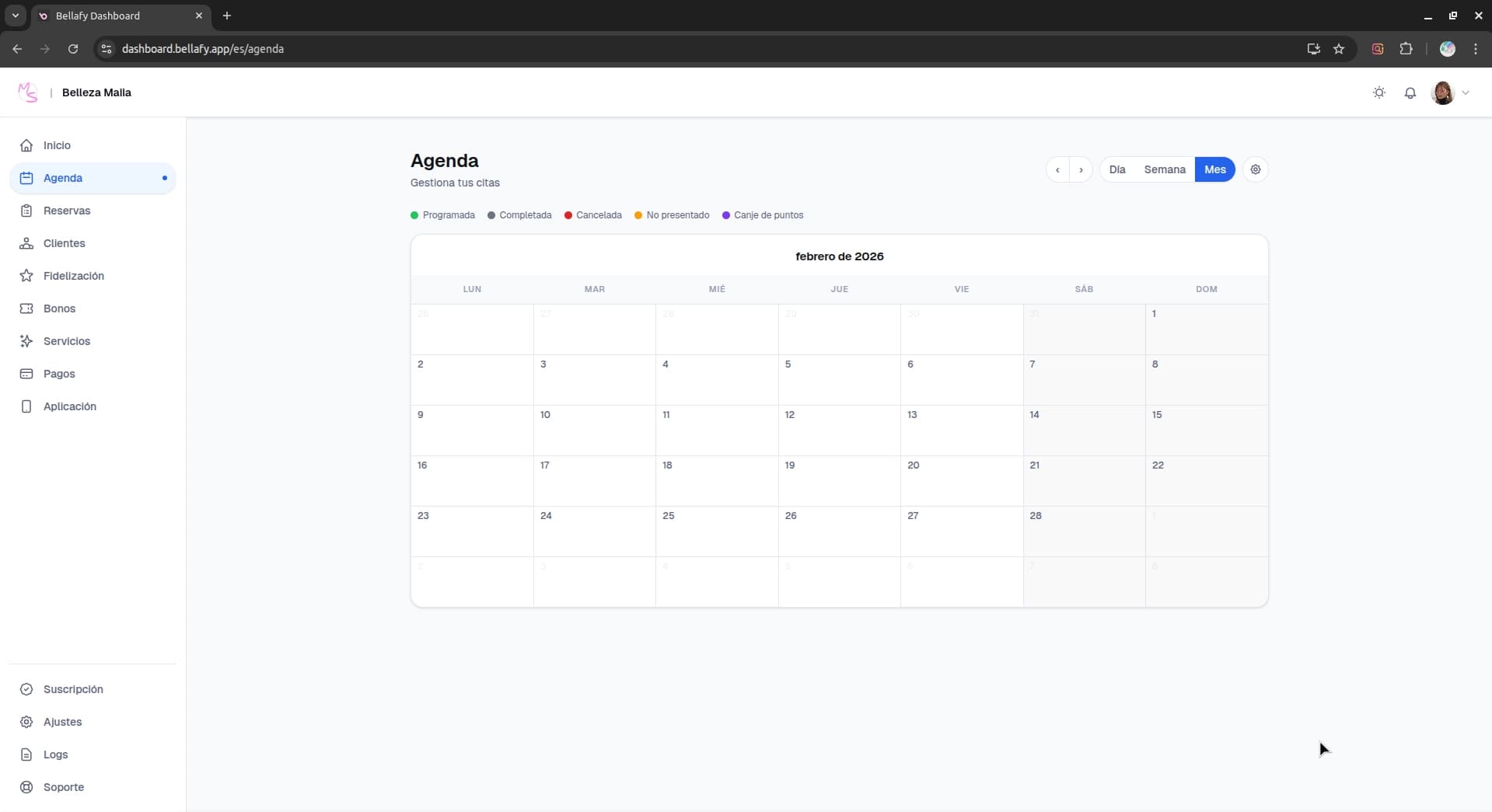
Editing a day
Click the day you want to edit
A side panel opens showing the current hours for that day.
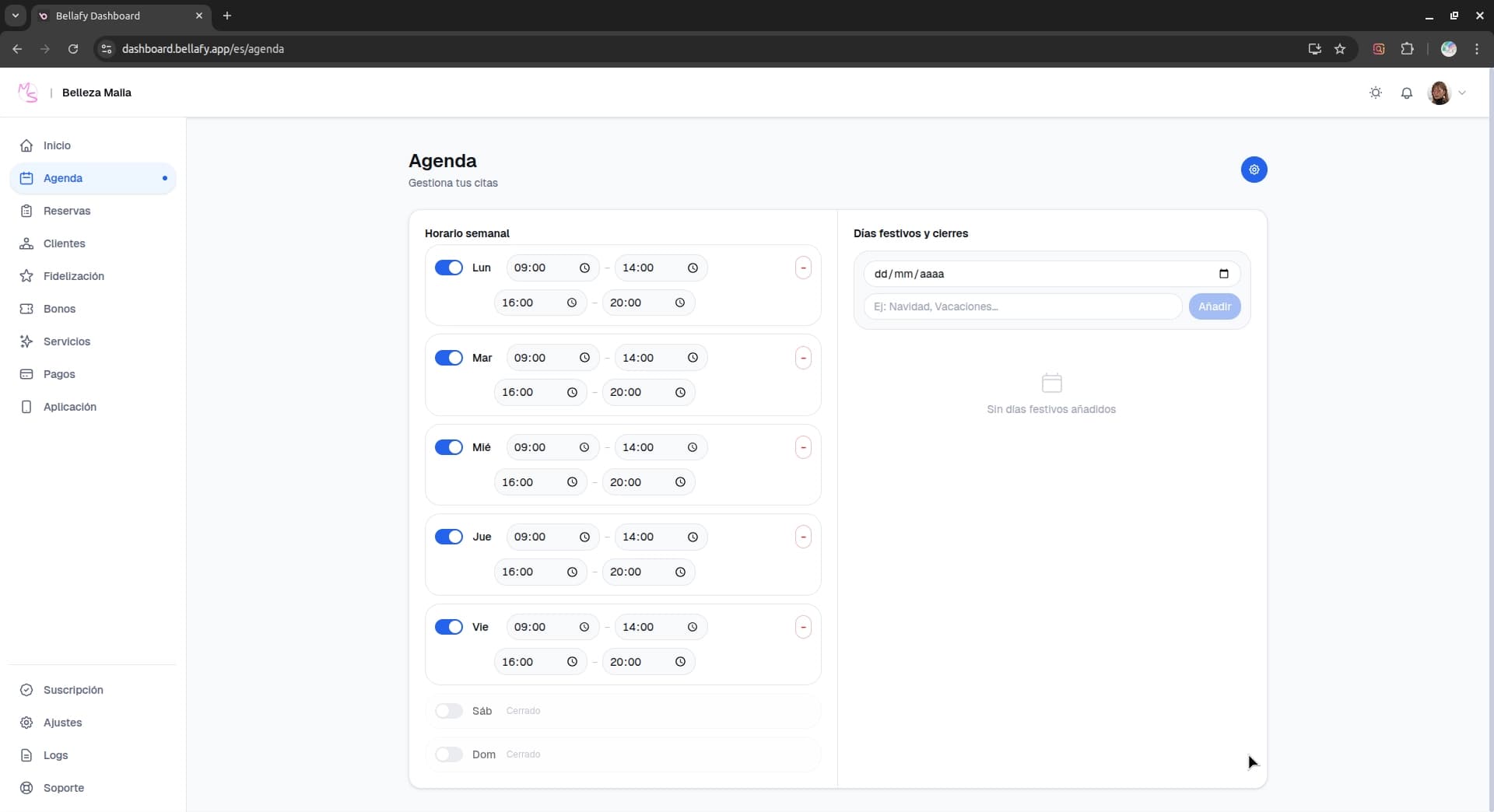
Set the working range
Define opening and closing times. You can have split shifts — for example, 9:00–14:00 and 16:00–20:00 with a closed period in between.
Add breaks if needed
Breaks are shorter closed periods inside your working range — useful for a lunch break or a standing weekly team meeting.
Save
Changes apply immediately. Existing bookings are never affected; only new bookings will respect the new hours.
Time zone
Every clinic operates in a specific time zone, which you set once during onboarding. All bookings are stored and displayed in your clinic's time zone, regardless of where the client is physically located.
Holidays and closed days
Need to close for a specific day — a national holiday, an off-site event, a team training? Mark the day as closed from the schedule. Clients will see the day as unavailable when picking a booking slot.
Recurring closures (like "closed every Sunday") are handled by setting that day as closed in your weekly schedule. One-off closures (like a Monday holiday) are marked individually on the calendar.