Agenda
Your day-by-day view of appointments — see who's coming, spot gaps, and manage the day as it unfolds.
Last updated: 2026-04-19
What the agenda is for
The agenda is your operational view — what's happening today, who's in, and where the open slots are. Think of it as a visual calendar optimized for clinic flow, not a reservations list.
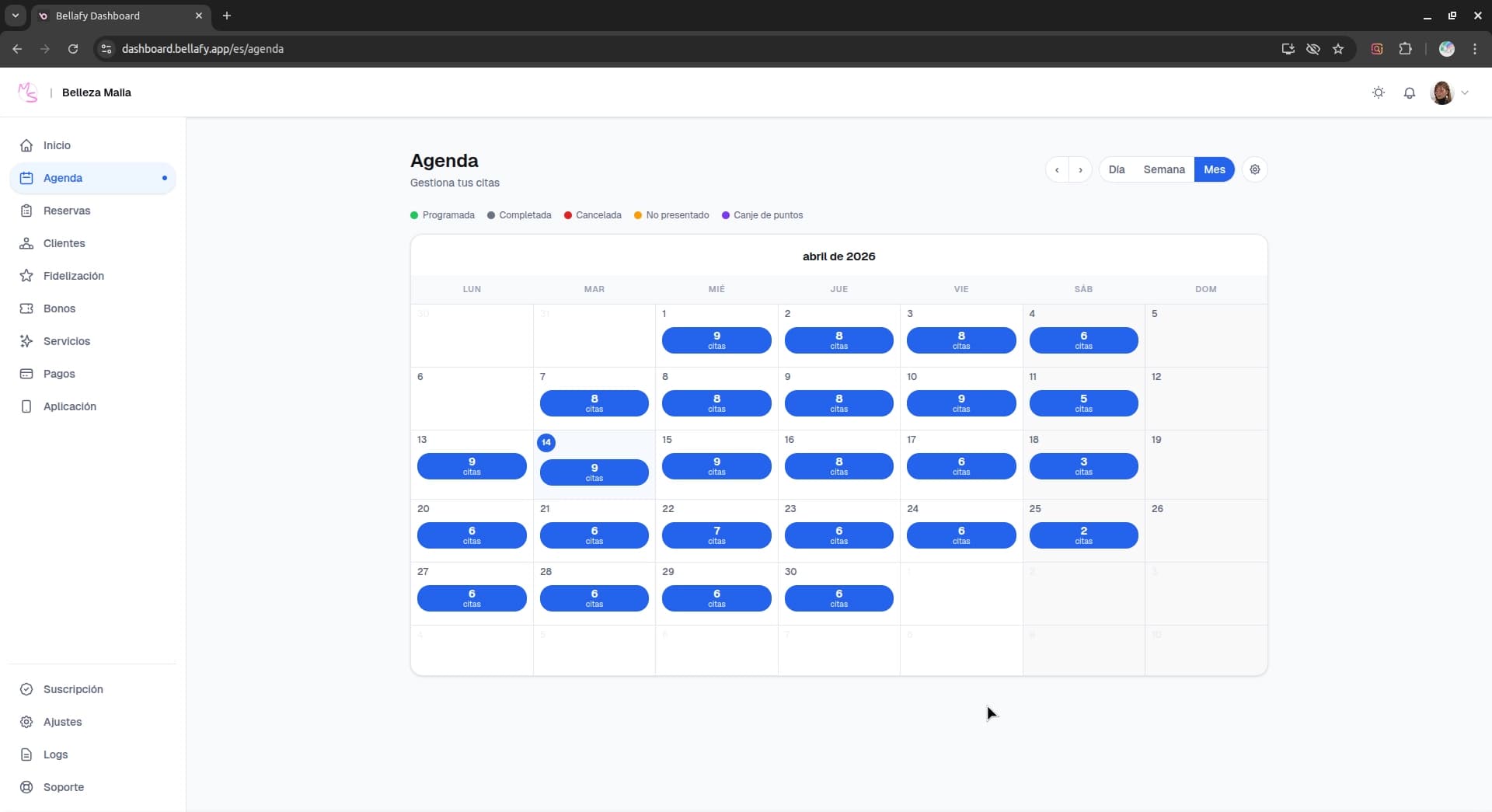
If you need to find, edit, or cancel a specific booking, the Reservations page is a better place to start. Use the agenda for visual planning and real-time awareness during the working day.
Reading the agenda
The day view
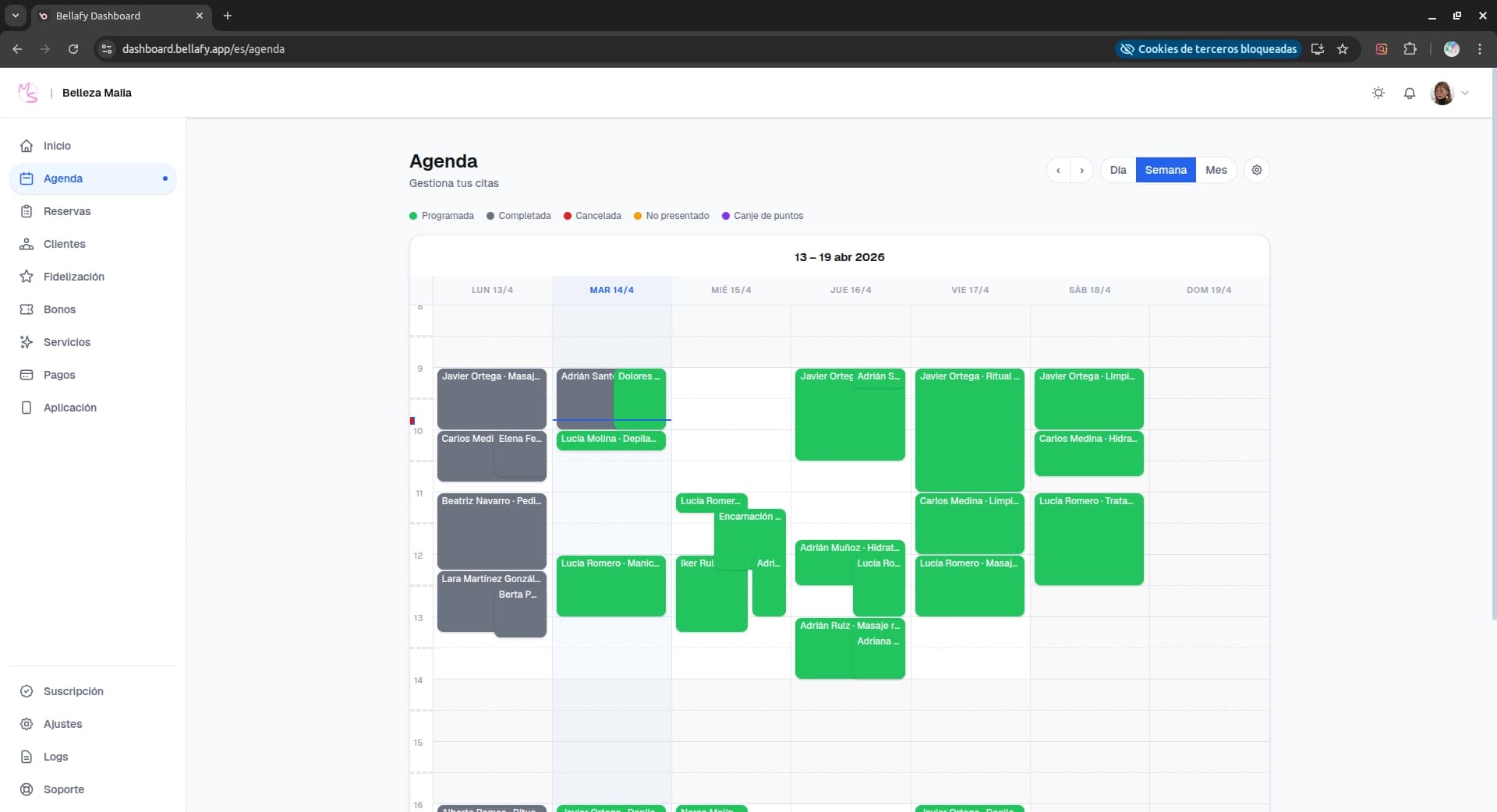
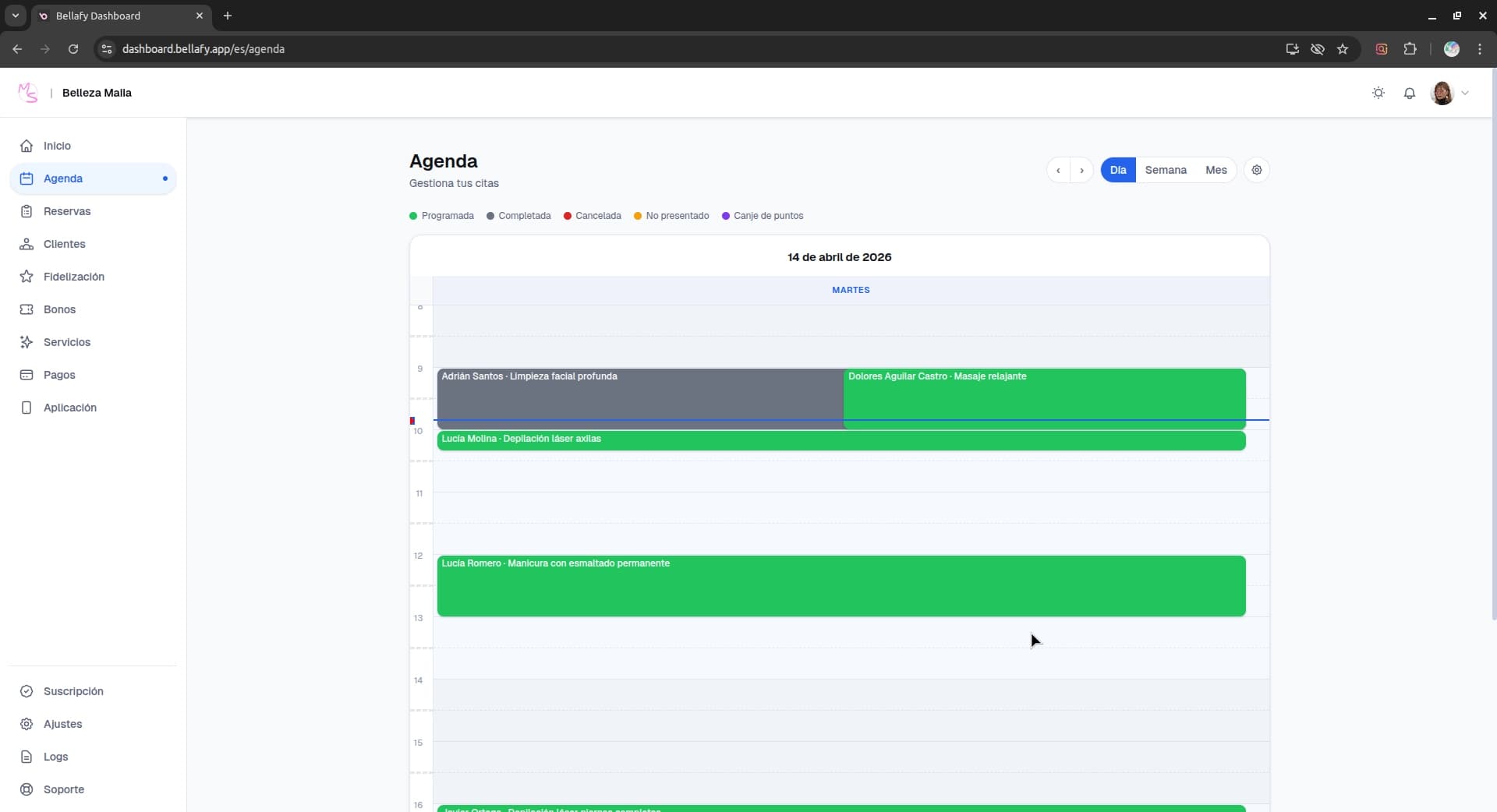
Each column is a day; each row is a time slot. Appointments appear as colored blocks that span their duration — a 60-minute treatment occupies a 60-minute block.
Navigating dates
Use the arrows at the top to move day by day, or pick a specific date from the date picker. You can also jump to "Today" with a single click.
Appointment details
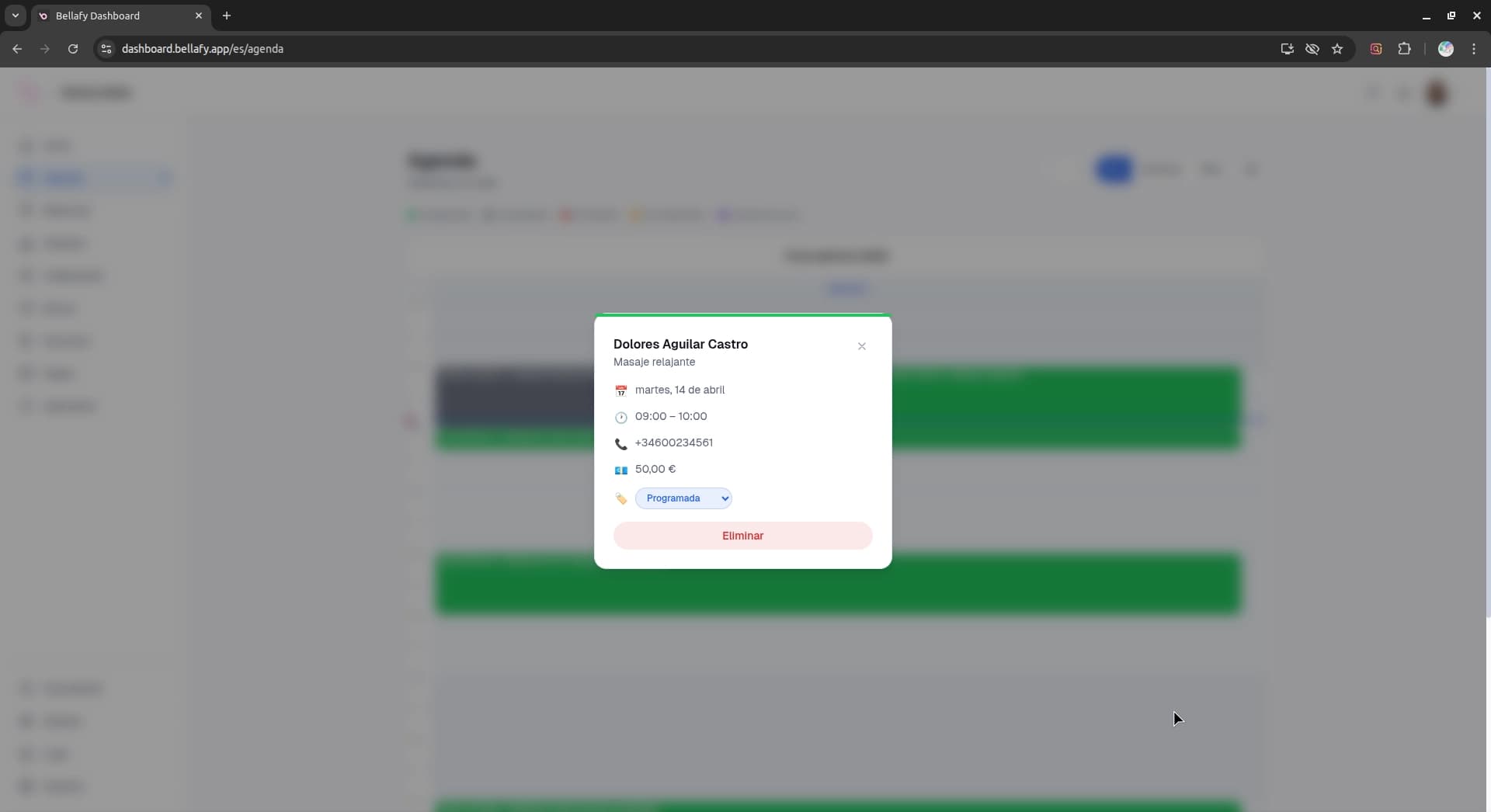
Click any appointment block to open a side panel with the full booking details — client name, service, price, deposit status, and any notes they left at booking.
Colors and appointment states
Appointment blocks use color to communicate their state at a glance, so you can scan the day without reading every detail.
- Solid color: confirmed appointment, deposit paid (if required).
- Light / outlined: confirmed appointment without deposit — "pay on arrival".
- Grey / muted: cancelled appointment, kept on the agenda for reference.
- Closed bars (non-clickable): breaks and closed hours defined in your schedule.
Quick actions from the agenda
- Click an appointment to view or edit it.
- Click an empty slot to manually create a booking — useful for walk-ins or phone reservations.
- Cancel directly from the side panel (the refund, if applicable, is handled automatically by your cancellation policy).
- Mark "Client arrived" or "No-show" to keep your records clean and help loyalty points work correctly.