Install the dashboard
Install the Bellafy dashboard as a desktop or mobile app for faster access and a distraction-free workspace.
Last updated: 2026-04-19
Why install the dashboard
Bellafy works perfectly inside any modern browser, but you can also install the dashboard as a Progressive Web App (PWA). That gives you a standalone window, a dock or taskbar icon, and a faster startup — with no extra downloads and no app store.
It's the same Bellafy you already use, just launched from its own icon instead of a browser tab.
Install on desktop (Chrome, Edge, Brave)
Open Bellafy in your browser
Go to bellafy.app and sign in to your account as usual.
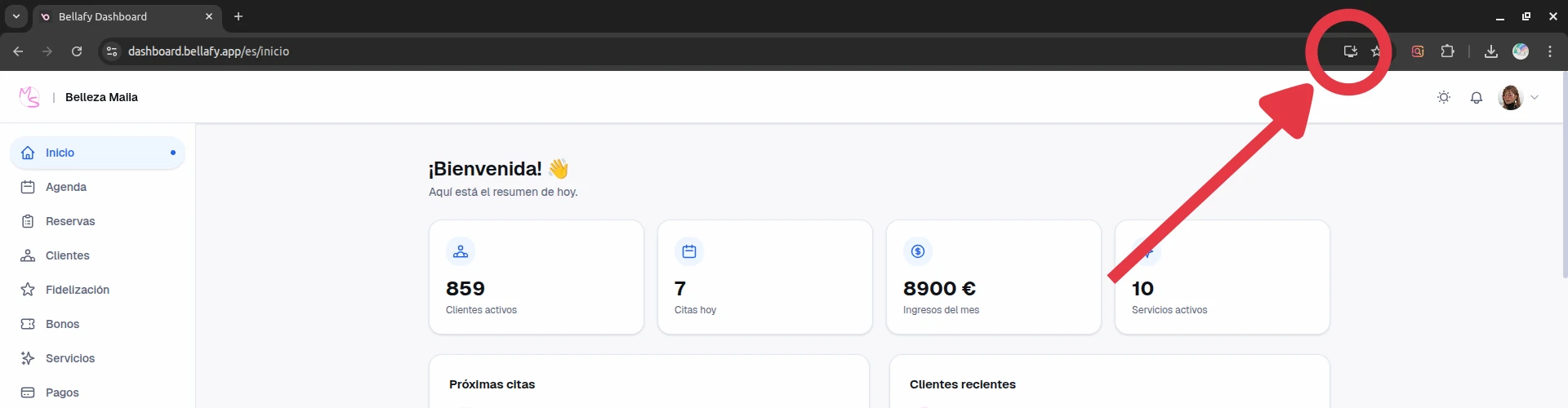
Click the install icon
In Chrome, Edge, and Brave, an install icon appears on the right edge of the address bar. Click it, then confirm "Install".
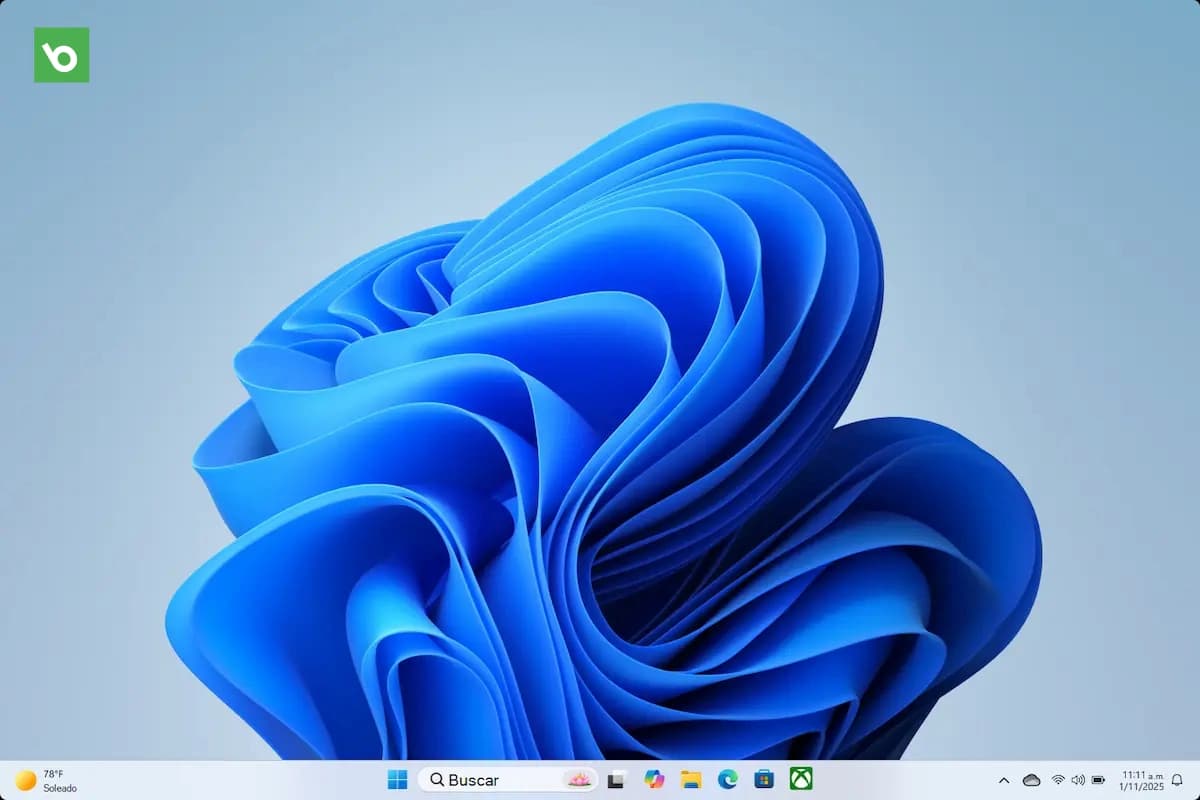
Launch from your desktop
Bellafy will appear as an app in your dock (macOS), taskbar (Windows), or app launcher (Linux). You can pin it there for one-click access.
Install on your phone
You can also install the dashboard on your phone if you want to check bookings on the go. Note that Bellafy's admin dashboard is optimized for tablet and desktop sizes — on a phone screen some views feel tight.
- iOS (Safari): tap the Share icon, then "Add to Home Screen".
- Android (Chrome): tap the ⋮ menu, then "Install app" or "Add to Home Screen".
Uninstalling
Uninstalling the PWA does not delete your account or your data. You can always come back to bellafy.app in any browser and sign in again.
- Desktop: open the Bellafy app, click the ⋮ menu in the top corner, then "Uninstall".
- Mobile: long-press the Bellafy icon on your home screen and remove it like any other app.